---
title: Salesforce integration overview
description: Sync data bidirectionally between Sellfire and Salesforce
---
[Skip to content](https://support.sellfire.com/enablement-system-configuration-integrations-salesforce#main-content)
[](https://sellfire.com)
Open main navigation
Close main navigation
Search the Knowledge Base
- There are no suggestions because the search field is empty.
1. [Sellfire Help Center](https://support.sellfire.com/?hsLang=en)
2. [Integrations and Plug-ins](https://support.sellfire.com/integrations-and-plug-ins?hsLang=en)
# Salesforce integration overview
### Integration scope
Sellfire lead and custom object system and custom fields can be synced bidirectionally with Salesforce Account, Lead, and Contact objects automatically upon lead creation, lead update, demo set, and sale and used to trigger lead [*Routing Rules*](https://support.sellfire.com/enablement-system-configuration-transfers-and-routing-routing-rules?hsLang=en) in Sellfire. Field data can be synced from Sellfire to connect to or create Salesforce Opportunities at the time of demo set and/or when sales are made in Sellfire. Other Salesforce system and custom objects can be synced from Salesforce to Sellfire and can trigger lead *Routing Rules* in Sellfire.
### Getting started
#### **Import existing leads**
You are able to bring your existing leads into Sellfire by bulk updating your Salesforce Accounts, Leads, and/or Contacts once the integration has been connected, fields have been mapped, and the Salesforce to Sellfire sync toggled on in *More Actions \> Settings* on the Salesforce tile or via .csv imports. Learn more in the *Sync existing Salesforce Accounts, Leads, Contacts* section below.
#### **Authenticate into Salesforce via Sellfire**
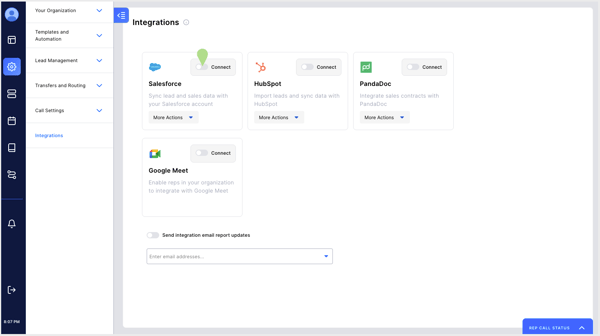
To get started with the integration, first, you will need to authenticate Salesforce via an Sellfire Enablement Edition. To do this, login with your Enablement Edition, and navigate to the *System Configuration* section by clicking on the gear in the left navigation bar. Then click on the *Integrations* sub tab on the left-hand side, and click *Connect* in the Salesforce tile (shown below).
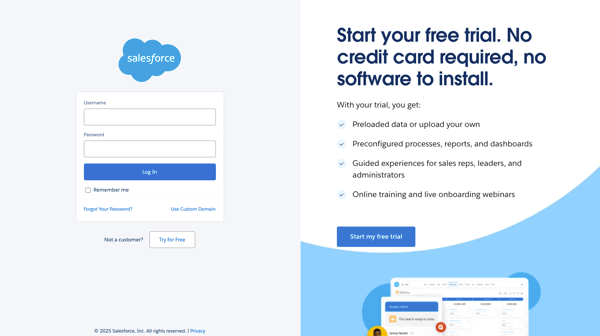
You will then be taken to the Salesforce login page (shown below) where you can enter your admin Salesforce credentials to authenticate Sellfire with Salesforce. Accept the prompt to authenticate, and you will then be taken back to Sellfire.
In order to support the integration, your Salesforce account needs to be able to View, Create, and Update Accounts, Leads, Contacts, Opportunities, and Opportunity Line Items.
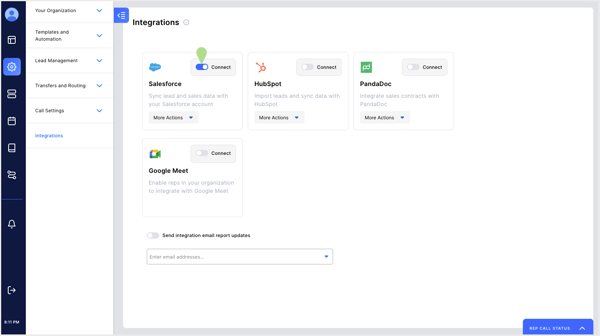
Once successfully authenticated, you will see *Connected* in the Salesforce tile in Sellfire (shown below).
#### **Determine Sellfire object to Salesforce object connection**
The Sellfire Lead, Product, and Sale objects can be connected to Salesforce Lead, Contact, Account, and Opportunity objects, and Sellfire custom objects can be connected to Salesforce objects that are connected to the Sellfire Lead object.
##### Common configurations
Connect the Sellfire Lead to the Salesforce Lead and Contact bidirectionally, and push from Sellfire to the Account and Opportunity at the time of demo set and/or sale.
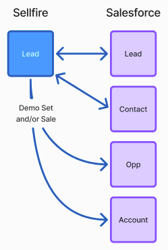
**Use case**: This is useful if you would like Reps to work Contacts separately from the overall Accounts. Sellfire Lead ownership will be at the Salesforce Lead (pre-Salesforce Contact) and the Salesforce Contact levels. There will be a separate Sellfire Lead for every Salesforce Lead, and then once converted at the time of demo set in Sellfire, a Sellfire Lead for every Salesforce Contact. A Sellfire Lead will be connected to a Salesforce Lead OR a Salesforce Contact (not both simultaneously). At the time of demo set in Sellfire, the Sellfire Lead will disconnect from the Salesforce Lead and find/create and connect to the Salesforce Contact.
Connect the Sellfire Lead to the Salesforce Lead and Account bidirectionally, and push from Sellfire to the Opportunity and Contact at the time of demo set and/or sale; connect a Sellfire custom object (Contact) to the Salesforce Contact object.
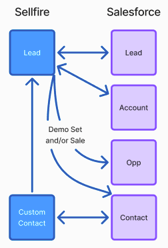
**Use case**: This is useful if you would like Reps to work Accounts with all Contacts rolling up to that Account. Sellfire Lead ownership will be at the Salesforce Lead (pre-Salesforce Account) and the Salesforce Account levels. There will be a separate Sellfire Lead for every Salesforce Lead, and then once converted at the time of demo set in Sellfire, a Sellfire Lead for every Salesforce Account. A Sellfire Lead will be connected to a Salesforce Lead OR a Salesforce Account (not both simultaneously). At the time of demo set in Sellfire, the Sellfire Lead will disconnect from the Salesforce Lead and find/create and connect to the Salesforce Account. A Sellfire custom Contact object (or whatever you would like to call it) will be connected to the Salesforce Contact object, and those Contacts will appear in Sellfire under the Sellfire Lead.
Push the Sellfire Product and Sale to the Salesforce Opportunity at the time of sale.
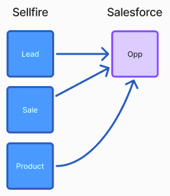
**Use case**: Automatically push Sellfire product line items and sale data along with Lead data to the Salesforce Opportunity and Opportunity Line Items, and automatically close the Opportunity as *Closed Won* when sales are made in Sellfire.
#### **Setup field mappings**
The next thing you will need to do is configure field mappings for the integration. The sync will not function until you have at least the Sellfire *primary phone number* field configured and you have toggled on the integration direction(s) in *More Actions \> Settings* on the Salesforce tile*.* It is strongly recommended that you also configure at least the Sellfire *business name* and *state* (state dictates 1-party vs. 2-party call recording) field mappings as well. All custom fields that you have created in Sellfire can be mapped.
To get started with field mappings, click on the *More Actions* button in the Salesforce tile and then click *Configure Field Mappings*. You will then see the field mapping screen (shown below). Note that initially, no fields will be mapped.
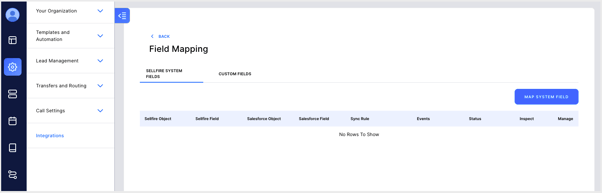
Here you can configure field mappings for system fields, which are fields that Sellfire provides by default, and Custom fields, which are any fields that Enablement users in your organization have created in the [*System Configuration \> Your Organization \> Object Manager*](https://support.sellfire.com/enablement-system-configuration-your-organization-object-manager?hsLang=en) section.
To map fields:
1. 1. Click on either the *SELLFIRE SYSTEM FIELDS* or *CUSTOM FIELDS* tab, and then click *Map System Field* or *Map Custom Field*. A modal will appear on the right side of your screen.
2. Select the Action(s) that will trigger the sync. This can be *Lead Create, Lead Update*, *Demo*, and/or *New Sale*. Then click *Next* at the bottom right of the modal.
3. At the top of the next page in the modal (shown below), select the Sellfire *Object*, which determines which Sellfire fields are selectable in the Sellfire *Field* dropdown.
This will commonly be the Lead object but also includes the Product, Sale, User, and any custom objects that you have created in *System Configuration \> Your Organization \> Object Manager*.
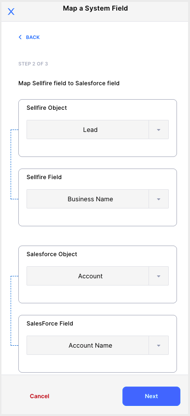
4. Select the Sellfire *Field* that you would like to map.
5. Then select the *Salesforce Object*, which determines which Salesforce properties are selectable in the *Salesforce Field* dropdown. All of your Salesforce properties, including custom fields, will be automatically populated and selectable based on the *Salesforce Field Category* that is selected.
6. Select the *Salesforce Field* that you would like to map.
7. Click *Next* at the bottom right of the modal.
8. You will be taken to the *Select Sync Rule* screen, which allows you to choose in which direction(s) you want the field to sync. You have seven options:
- **Always use Salesforce unless blank**. The field value will sync from Salesforce to Sellfire when updated in Salesforce. If the field value is updated in Sellfire, it will not sync to Salesforce. Blank / null values from Salesforce will not overwrite existing values in Sellfire.
This can be useful for acquisition or attribution type data that you don’t want to change in Salesforce.
- **Always Use Salesforce**. The field value will sync from Salesforce to Sellfire, even if it is blank / null. If the field value is updated in Sellfire, it will not sync to Salesforce. Blank / null values from Salesforce will overwrite existing values in Sellfire.
- **Always use Sellfire unless blank**. The field value will sync from Sellfire to Salesforce when updated in Sellfire. If the field value is updated in Salesforce, it will not sync to Sellfire. Blank / null values from Sellfire will not overwrite existing values in Salesforce.
- **Always use Sellfire**. The field value will sync from Sellfire to Salesforce, even if it is blank / null. If the field value is updated in Salesforce, it will not sync to Sellfire. Blank / null values from Sellfire will overwrite existing values in Salesforce.
- **Two-way unless blank**. The field value will sync between Sellfire and Salesforce when updated in either system. Blank / null values will not overwrite existing values in either system.
- **Two-way**. The field value will sync between Sellfire and Salesforce when updated in either system, even if it is blank / null. Blank / null values will overwrite existing values in either system.
For technical specifics about how the sync operates, please see the Two-way sync deep dive section further down in this document.
- **Don’t Sync**. For this option, the field does not sync. Note that this is an explicit way to not sync the field. Not having a field mapping will also not sync the field.
9. Once you have chosen the option that best suits your need, click *Save* at the bottom right of the modal.
Way to go! You have successfully mapped a field. Now, as long as you have at least the Sellfire *primary phone number* field mapped and you have toggled on sync directions in *More Actions \> Settings* on the Salesforce tile, the sync will be triggered per your configurations. It is strongly recommended that you also configure at least the Sellfire *business name* and *state* (state dictates 1-party vs. 2-party call recording) field mappings as well.
The *Custom Field Mapping* section works the same, except the Sellfire *Field* dropdown populates all the custom fields that have been created in the *[System Configuration \> Your Organization \> Object Manager](https://support.sellfire.com/enablement-system-configuration-your-organization-object-manager?hsLang=en)* section.
#### **Date / time field format**
When sending date/time from Sellfire to Salesforce, that data is sent in UTC time in ISO 8601 format (shown below). Salesforce can then populate this date and time in the viewing Salesforce user's configured timezone.
YYYY-MM-DDTHH:mm:ssZ
*Example: 2026-01-31T12:00:00.000Z*
#### **Match dropdown field values between Sellfire & Salesforce**
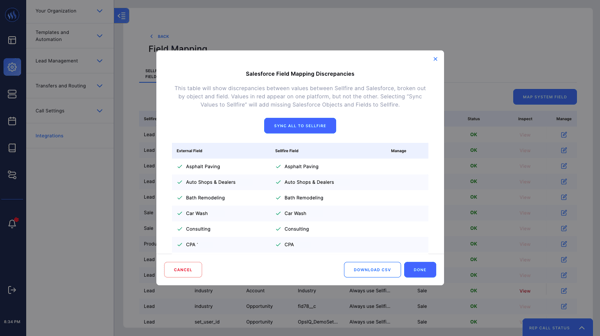
When mapping fields with dropdown values, an *Inspect* column is available in the field mapping table that allows you to easily determine if the dropdown values in Sellfire match the dropdown values for those fields in Salesforce. This functionality allows you to quickly diagnose and resolve any potential data validation issues in these fields.
After you have mapped the fields, if you click *View* in the row of the field that you want to inspect, you will be provided with the current dropdown options that exist in Salesforce (left column), the current dropdown options that exist in Sellfire (middle column), a notification telling you if those values align in both Sellfire and Salesforce (green check mark if matching; red text if not), and the ability to create values that are missing in Sellfire automatically by clicking a button (right column or sync all button at the top).
### Salesforce object sync direction(s)
| **Salesforce object** | **Sync direction(s)** | **Sync trigger(s)** |
| --- | --- | --- |
| Contact & Lead | Sellfire \<-\> Salesforce | - New lead or contact created in Salesforce (where phone number doesn't already exist in Sellfire). Fields mapped using the Lead create/update event trigger. \- Any updates to fields mapped between Sellfire and the Salesforce Lead and/or Contact (using the Lead create/update event trigger). \- At time of sale in Sellfire (fields mapped using the Sale event trigger). |
| Account | Sellfire \<-\> Salesforce | - New account created in Salesforce (where phone number doesn't already exist in Sellfire). \- At time of demo set in Sellfire (if turned on. Off by default). \- After connection at time of demo set (if turned on), any updates to fields mapped between Sellfire and Salesforce Account fields. \- At time of sale in Sellfire (fields mapped from Sellfire to the Salesforce Account using the *Sale* event trigger). |
| Opportunity | Sellfire -\> Salesforce | - At time of demo set in Sellfire (if turned on. Off by default). Fields mapped in the Sellfire Lead to Salesforce Opportunity direction (using the *Demo* event trigger). \- After connection at time of demo set (if turned on), any updates to fields mapped in the Sellfire Lead to Salesforce Opportunity direction (using the *Lead create/update* event trigger). \- At time of sale in Sellfire. Fields mapped in the Sellfire Lead to Salesforce Opportunity direction (using the *Sale* event trigger). |
| Custom objects | Sellfire \<-\> Salesforce | - The Salesforce custom object must be connected to the Salesforce object that is mapped to the Sellfire Lead object. \- Any updates to fields mapped in Sellfire. \- At time of sale in Sellfire (if fields mapped from Sellfire to the Salesforce custom objects with the *Sale* event trigger). |
### Ownership sync
Bidirectionally sync lead ownership between Sellfire and Salesforce Leads, Contacts, and/or Accounts using the *Owned Rep Id* Sellfire field found under the Sellfire Lead object. If synced from Salesforce to Sellfire (or bidirectionally), Sellfire lead ownership will change\* if the rep ID to which it is changed in Salesforce is associated with a Sellfire rep user who has not been deleted. Find and export your current Sellfire rep IDs in [*System Configuration \> Your Organization \> Sales Teams \> List view*](https://support.sellfire.com/enablement-system-configuration-your-organization-sales-teams?hsLang=en).
You will need to create a custom field on the Salesforce Object(s) connected to the Sellfire Lead object with the Sellfire Rep IDs as dropdown values and map that to the *Owned Rep Id* field on the Sellfire Lead object.
\* To help prevent confusion with upcoming specific-time events (specific time callbacks, demos, decision calls), if owned leads have future specific-time events in Sellfire, Sellfire will not accept a change in ownership from Salesforce, and an email notification will be sent to Enablement users so that they can determine a resolution.
### Phase sync
Send all Sellfire lead phases to Salesforce and change specific phases in Sellfire from Salesforce Accounts, Leads and/or Contacts. To ensure reporting remains accurate and intuitive, Sellfire only accepts Phase changes from Salesforce if changing the Phase to the ColdCallCold, Resting, Long Resting, Retired, and Customer phases.
In a sales cycle, leads progress through these phases depending upon activities made by reps. Leads cannot go backwards in a sales cycle. Once a sales cycle is completed (determined by activities reps make on leads), if the lead was not put into a Customer or Retired phase to end the sales cycle, after a lead has completed any resting phases, it will return to the first phase (ColdCallCold) to begin another sales cycle.
To ensure alignment, enter the Sellfire Phase names exactly as they appear below as dropdown values in a custom Salesforce dropdown (picklist) field in the Salesforce Lead, Contact, Opportunity, and/or Account objects.
| **Sellfire Phase name** | **Sync direction(s)** | **Description** |
| --- | --- | --- |
| ColdCallCold | Sellfire \<-\> Salesforce | A lead is unassigned or has not had a dial attempt in the current sales cycle. **Use case**: Sync bidirectionally to move leads out of Retired or Customer phases from Salesforce if they are ready to be worked by reps. |
| ColdCallWorkingNum | Sellfire -\> Salesforce | Cold call working number. A dial has been made on the lead in the current sales cycle showing that the number dialed is a working number. |
| ColdCallNDM | Sellfire -\> Salesforce | Cold call non-decision maker (gatekeeper) reached in the current sales cycle. |
| ColdCallDM | Sellfire -\> Salesforce | Cold call decision maker reached in the current sales cycle. |
| HeldPhase | Sellfire -\> Salesforce | Once a demo has been set for the first time in the current sales cycle and that demo time has not passed. |
| PostInitialHelPhaseDemoNotHeld | Sellfire -\> Salesforce | Post initial held phase - demo not held. Once a demo has been set for the first time in the current sales cycle, but that demo was not held at the scheduled time. |
| PostHoldPhase | Sellfire -\> Salesforce | Once a demo has been held in the current sales cycle. |
| RestingColdCall | Sellfire -\> Salesforce | Leads that were put into a resting phase (not interested call result) while in a cold call phase. |
| LongRestingColdCall | Sellfire -\> Salesforce | Leads that were put into the long resting phase (not interested call result after held demo) while in a cold call phase. |
| Resting | Sellfire \<-\> Salesforce | Leads that were put into a resting phase (not interested call result) before a demo was held in the most-recent sales cycle. |
| LongResting | Sellfire \<-\> Salesforce | Leads that were put into a resting phase (not interested call result) after a demo was held in the most-recent sales cycle. |
| RetiredColdCall | Sellfire -\> Salesforce | Leads that were put into the Retired phase while in a cold call phase. |
| Retired | Sellfire \<-\> Salesforce | Leads that were put into the Retired phase after a cold call phase. **Use case**: Sync bidirectionally to move Sellfire leads into the Retired phase from Salesforce so that reps cannot claim or dial and will not be automatically assigned these leads. |
| Customer | Sellfire \<-\> Salesforce | **Use case**: Sync bidirectionally to move Sellfire leads into the Customer phase from Salesforce so that reps cannot claim or dial and will not be automatically assigned these leads. |
### Pipeline Stage sync
Sellfire can send Pipeline Stages from the Sellfire Lead object to Salesforce Lead, Contact, Opportunity, and/or Account objects. To ensure reporting remains accurate and intuitive, Sellfire does not accept any of these values back into Sellfire should they be updated in Salesforce.
To ensure alignment, enter the Sellfire Pipeline Stage names exactly as they appear below as dropdown values in a custom Salesforce dropdown (picklist) field in the Salesforce Lead, Contact, Opportunity, and/or Account objects.
Undialed
No Contact Made
NDM Contact
NDM Contact Interested
DM Contact
DM Contact Interested
Demo Set
Demo Set Flaked
Demo Held
Follow Up Demo Held
Decision Call Held
Do Not contact
Sale
Customer Non Sale
### Sync existing Salesforce Accounts, Leads, Contacts
#### **Creating new Sellfire Leads**
To create Salesforce Accounts, Leads, and/or Contacts as Sellfire Leads, if the related phone numbers don't already exist on Sellfire Leads, you can bring these into Sellfire by either bulk updating all of the Salesforce Accounts, Leads, Contacts that you would like to sync or by importing a .csv file.
#### Bulk update
After you have toggled on leads being created in Sellfire from the Salesforce integration in *System Configuration \> Integrations \> Salesforce Settings*, in Salesforce, bulk update all of the Accounts, Leads, and/or Contacts that you would like to be created as leads in Sellfire.
If using the *sellfire\_whitelist* property on Salesforce Accounts, Leads, and/or Contacts to determine specific leads that you would like to sync with Sellfire, you can bulk update this property to "true" to trigger the bulk sync. Note that if it is already "true," you will need to first change it back to "false" and then back to "true."
#### .csv import
Navigate to [System Configuration \> Lead Management \> Import Leads](https://support.sellfire.com/enablement-system-configuration-lead-management-import-leads-activities?hsLang=en), and complete a .csv import using the column headers and data formats described in the [System Configuration \> Lead Management \> Import Leads article](https://support.sellfire.com/enablement-system-configuration-lead-management-import-leads-activities?hsLang=en). Make sure that in the import, you include the Salesforce Account, Lead, and/or Contact record IDs in the applicable columns outlined in the linked article. Then authenticate your Salesforce integration, map your fields, and toggle on the integration in *More Actions \> Settings* on the Salesforce tile to ensure that the data remains synced moving forward. Once you have done that, complete the import as described in the article linked above.
Note that if you do not complete this step and new leads are created in Sellfire with primary phone numbers that already exist on Accounts, Leads, and Contacts in Salesforce, those Sellfire leads and existing Salesforce Accounts, Leads, and Contacts will not be connected until an update happens on the Salesforce Account, Lead, and/or Contact, a demo is set in Sellfire (if you have configured field mapping using the *demo* event) and/or a sale is processed in Sellfire (if you have configured field mapping using the *sale* event).
#### **Connecting to existing Sellfire Leads**
To connect Salesforce Accounts, Leads, and/or Contacts to existing Sellfire Leads that were in Sellfire prior to the sync being activated, complete a .csv import using the column headers and data formats described in the [System Configuration \> Lead Management \> Import Leads article](https://support.sellfire.com/enablement-system-configuration-lead-management-import-leads-activities?hsLang=en).
Note that if you do not complete this step and new leads are created in Sellfire with primary phone numbers that already exist on Accounts, Leads, and Contacts in Salesforce, those Sellfire leads and existing Salesforce Accounts, Leads, and Contacts will not be connected until an update happens on the Salesforce Account, Lead, and/or Contact, a demo is set in Sellfire (if you have configured field mapping using the *demo* event) and/or a sale is processed in Sellfire (if you have configured field mapping using the *sale* event).
### Sellfire lead to Salesforce Account, Lead / Contact creation
After the integration is connected with fields mapped from Sellfire to Salesforce, when a new lead is created in Sellfire, if the required fields are pushing from the Sellfire Lead object to Salesforce Account, Lead, and Contact object fields (with no Sellfire custom Contact object created and mapped to the Salesforce Contact object), and the primary phone number for the Sellfire lead is not already associated with an existing Salesforce Lead or Contact, Sellfire will use the following logic to create new Salesforce Contacts and Leads:
- The Sellfire Lead object is mapped from Sellfire to the Salesforce Lead and/or Contact object in the Sellfire to Salesforce direction. At least the Sellfire primary phone number field must be mapped to a Salesforce phone number field.
- The Sellfire setting for Outbound Lead creation is activated in *System Configuration \> Integrations \> Salesforce More Actions \> Settings*.
- If a Sellfire lead meets the following conditions, Sellfire will create as a Salesforce Contact:
- The Lead moves from a Cold call phase to the Held Phase (when a demo is set for the first time in the sales cycle).
- There is a Salesforce Contact ID in the Sellfire lead.
This applies to a Sellfire lead whose sync already updated from a Salesforce Lead to Salesforce Contact or a Sellfire lead that had a Salesforce Contact ID attached to it via a .csv lead import.
- In all other cases, if the Sellfire Lead object is mapped to the Salesforce Lead object, Sellfire will create a Sellfire lead as a Salesforce Lead.
To toggle on/off if you want newly created leads in Sellfire to attempt to create leads in Salesforce, navigate to *System Configuration \> Integrations \> Salesforce More Actions \> Settings*.
### Salesforce Account, Lead, & Contact to Sellfire lead creation
After the integration is connected with at least a phone number mapped from Salesforce to the Sellfire primary phone number field, when a new account, lead, or contact is created in Salesforce, if the phone number that is mapped back to the Sellfire primary phone number field does not already exist as a primary phone number on a lead in Sellfire, a new Sellfire lead will be created.
To toggle on/off if you want newly created accounts, leads, and contacts in Salesforce to attempt to create leads in Sellfire, navigate to *System Configuration \> Integrations \> Salesforce More Actions \> Settings*.
### Sync direction settings
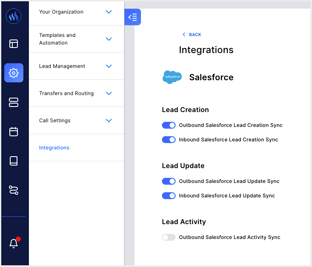
To toggle on/off lead creation and/or updates in either direction between Sellfire and Salesforce and the Sellfire to Salesforce lead activity sync, navigate to *System Configuration \> Integrations \> Salesforce More Actions \> Settings* (shown below).
These settings override any specific field mapping event triggers. *For example, if you have toggled off Outbound Salesforce Lead Creation Sync, if fields are mapped using the Lead create/update event trigger, Salesforce objects will not be created from Sellfire.*
### Salesforce Lead to Contact connection update
Automatically disconnect from Salesforce Leads and create and connect to Salesforce Contacts when reps set demos in Sellfire. Connection updates will be triggered when reps log dispositions per the rules described below.
#### **Requirements**
1. Contact our Support team ([support@sellfire.com](mailto:support@sellfire.com)) to turn this function on for your organization.
2. In System Configuration \> Integrations \> Salesforce Configure Field Mapping, map both the Sellfire and Salesforce required fields from Sellfire to the Salesforce Lead and Contact objects using the create/update event. Note that if any of these fields are not mapped to the correct fields in the Salesforce Lead and Contact objects and/or if there are no values in these fields in Sellfire, Sellfire lead syncs will not be updated from Salesforce Leads to Salesforce Contacts.
| **Sellfire object** | **Sellfire field name** | **Salesforce object** | **Salesforce field name** | **Sync direction(s)** |
| --- | --- | --- | --- | --- |
| Lead | Primary Phone Number | Contact | Phone | Sellfire -\> Salesforce \*or\* Sellfire \<-\> Salesforce |
| Lead | Last Name | Contact | Last Name | Sellfire -\> Salesforce \*or\* Sellfire \<-\> Salesforce |
| Lead | Primary Phone Number | Lead | Phone | Sellfire -\> Salesforce \*or\* Sellfire \<-\> Salesforce |
| Lead | Last Name | Lead | Last Name | Sellfire -\> Salesforce \*or\* Sellfire \<-\> Salesforce |
| Lead | Business Name | Lead | Company | Sellfire -\> Salesforce \*or\* Sellfire \<-\> Salesforce |
### Opportunity creation
Salesforce Opportunities can be created by Sellfire when reps set demos and/or make sales in Sellfire.
#### **At the time of demo set**
- - If a lead enters the Held phase (when a demo is set) in Sellfire, an Opportunity will be created in Salesforce.
- If a rep processes a sale for that lead in that same sales cycle in Sellfire, Sellfire will update that existing Opportunity StageName to be "Closed Won."
- If the Lead instead goes into the Resting or Retired phases in Sellfire, no action will be taken by Sellfire, and the Opportunity StageName can be updated manually in Salesforce.
- If the Lead comes out of the Resting or Retired phases in Sellfire, a new sales cycle is started, and it again enters the Held phase (when a demo is set), Sellfire will create a new Opportunity in Salesforce tied to the same Salesforce Account as the previous Opportunity.
#### Requirements
1. 1. Contact our Support team ([support@sellfire.com](mailto:support@sellfire.com)) to turn this function on for your organization.
2. Once this functionality has been turned on, navigate to System Configuration \> Integrations \> Salesforce More Actions \> Configure Field Mapping, and map the following fields using the demo event:
| **Sellfire object** | **Sellfire field name** | **Salesforce object** | **Salesforce field name** | **Sync direction(s)** |
| --- | --- | --- | --- | --- |
| Lead | Primary Phone Number | Account | AccountPhone | Sellfire -\> Salesforce \*or\* Sellfire \<-\> Salesforce |
| Lead | Business Name | Account | AccountName | Sellfire -\> Salesforce \*or\* Sellfire \<-\> Salesforce |
| Lead | Primary Phone Number | Contact | Phone | Sellfire -\> Salesforce \*or\* Sellfire \<-\> Salesforce |
| Lead | Last Name | Contact | Last Name | Sellfire -\> Salesforce \*or\* Sellfire \<-\> Salesforce |
| Lead | Business Name | Opportunity | Name | Sellfire -\> Salesforce |
#### Default fields included on the opportunity
| **Salesforce field** | **Sellfire data** |
| --- | --- |
| AccountId | The account ID of the connected Salesforce Account. |
| ContactId | The contact ID of the connected Salesforce Contact. |
| Name | The Business Name from the lead in Sellfire. |
| CloseDate | The date/time of the future demo. |
| StageName | By default, this is "Qualification." This can be changed to a different value by reaching out to our Support team ([support@sellfire.com](mailto:support@sellfire.com)). |
Additional fields can be mapped from Sellfire to Salesforce Opportunity fields using the *demo* event.
#### **At time of sale**
Any fields mapped from Sellfire to Salesforce Opportunity fields in the *System Configuration \> Integrations \> Configure Field Mapping* section using the *Sale* event will be pushed when reps confirm sales in Sellfire. The StageName will be set to "Closed Won" in the Opportunity that's created.
### Sellfire Sales Sync
After the primary configuration has been set up and at least one field has been mapped with the *Sale* event type, Sellfire will send over sales data to Salesforce as sales are processed in Sellfire.
When a sale is made, the integration will do the following in Salesforce:
1. Connect to or create an Account.
**Sellfire -\> Salesforce Account sync / creation logic**:
1. If the Salesforce Contact is connected to the Sellfire Lead object, and the Sellfire Lead creation was triggered by the Salesforce Contact sync, if a Salesforce Account was already connected to that Contact, this same Account will be connected. If not, move to b.
2. Search Sellfire primary\_phone\_number to find a matching Salesforce Account.Phone.
\> If match, search Sellfire business\_name to find a matching Salesforce Account.Name.
\>\> If single match, connect to Salesforce Account.
\>\> If multiple matches, search City.
\>\>\> If single match, connect to Salesforce Account.
\>\>\> If multiple matches, create new Salesforce Account.
\>\>\> If no matches, create new Salesforce Account.
\>\> If no matches, create new Salesforce Account.
\> If no match, move to c.
3. Search Sellfire business\_name to find a matching Salesforce Account.Name.
\> If match, search City.
\>\> If single match, connect to Salesforce Account.
\>\> If multiple matches, create new Salesforce Account.
\>\> If no matches, create new Salesforce Account.
\> If no match, create new Salesforce Account.
2. Connect to or create a Contact and link it to the Account.
**Sellfire -\> Salesforce Contact sync / creation logic**:
1. Under the connected Salesforce Account, search Sellfire primary\_phone\_number to find a matching Salesforce Contact.Phone.
\> If match or matches, search Sellfire last\_name to find a matching Salesforce Contact.LastName.
\>\> If single match, connect to Salesforce Contact.
\>\> If multiple matches, create new Salesforce Contact.
\>\> If no match, create new Salesforce Contact.
\> If no match, create new Salesforce Contact.
A contact will also be connected or created for every *Associated Contact* on the Sellfire lead.
3. Create an Opportunity and link it to the Contact.
4. If you configured an Opportunity to be created at the time of demo set, the existing Opportunity that was created at the time of demo set will be updated instead of a new one being created.
5. Create an Opportunity Line Item for each sale item in the Sellfire sale and link them all to the Opportunity.
#### **Adding and re-syncing sales**
To add sales to Sellfire that were made in Salesforce, navigate to *System Configuration \> Lead Management \> Import Leads*, and complete a .csv import using the column headers and data formats described in the [System Configuration \> Lead Management \> Import Leads article](https://support.sellfire.com/enablement-system-configuration-lead-management-import-leads-activities?hsLang=en).
To re-sync sales to Salesforce that were made in Sellfire, navigate to *System Configuration \> Integrations \> Salesforce More Actions \> Integration Reports*, and click the *Repush Event* button in the *Action* column for the sale that you are wanting to sync.
### Sync speed
Sellfire sends newly created leads and updates to mapped fields in Salesforce within seconds of them happening in Sellfire. Sellfire polls Salesforce leads and contacts every minute to sync newly created leads and field updates from Salesforce. There is a limit of 1000 Salesforce Leads and Contacts that can be fetched by Sellfire in every minute interval.
### Activity sync
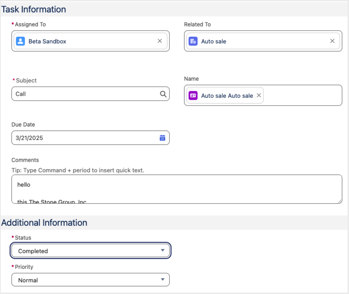
Send Sellfire call and email activities to Salesforce Tasks. This can be activated by navigating to *System Configuration \> Integrations \> Salesforce More Actions \> Settings*. Note that Sellfire does not currently support receiving these activities from Salesforce.
#### **Supported Task types from Sellfire to Salesforce**
**Calls**: Sellfire will send all lead activity related to phone calls to Salesforce Call Tasks.
**Emails**: Sellfire will send all lead activity related to emails to Salesforce Email Tasks.
**Non-call dispositions
Reschedule Event dispositions**: Sellfire will create activities when users reschedule events from the *Event Detail* page in Sellfire.
**Delete Event dispositions**: Sellfire will create activities when users delete events from the *Event Detail* page in Sellfire.
#### **Activity sync field mappings**
No additional action is required to map the following fields once the activity sync is activated. Sellfire connects these to the Salesforce Task object automatically.
| **Sellfire field** | **Salesforce field** | **Example** |
| --- | --- | --- |
| User.sf\_owner\_id | OwnerId | |
| Conference.duration | CallDurationinSeconds | |
| N/A | CallObject | |
| Disposition.type (start\_time) | CallDisposition | DemoSet (3/1/23 08:00:00) |
| LeadActivity.channel | CallType | |
| LeadActivity.notes | Description | |
| LeadActivity.created\_at | CompletedDateTime | |
| N/A | IsRecurrence | |
| User.sf\_owner\_id | CreatedById | |
| LeadActivity.created\_at | ActivityDate | |
| N/A | Email | |
| N/A | LastModifiedById | |
| Lead.sf\_lead\_id / Lead.sf\_contact\_id | WhoId | |
| Lead.primary\_phone\_number | Phone | |
| N/A | Priority | |
| N/A | RecurrenceInterval | |
| N/A | WhatId | |
| N/A | IsReminderSet | |
| N/A | RecurrenceRegeneratedType | |
| Static : Completed | Status | |
| LeadActivity.communication\_type | Subject | |
| LeadActivity.communication\_type | TaskSubtype | |
| LeadActivity.communication\_type | Type | |
#### **Salesforce Task object mapping**
Sellfire will use the Salesforce Task object to trigger Lead Activity. Below is the schema for how the Task object is related to other Salesforce objects that Sellfire uses. The field mappings of Tasks are pre-set by Sellfire and cannot be configured by users in the UI. If you require special mapping configurations with Salesforce Tasks, please reach out to Sellfire support (support@sellfire.com).
User → Task: Salesforce User has a one to many relation with Task.
Lead → Task: Salesforce Lead has a one to many relation with Task.
Contact → Task: Salesforce Contact has a one to many relation with Task.
Account → Task: Salesforce Account has a one to many relation with Task.
#### **Example of how Sellfire activities appear in Salesforce**
### Maintenance
#### **Edit & delete field mappings**
To edit or delete field mappings:
1. Click on *Edit* at the far right of the field mapping table under the *Manage* column.
2. If editing, make any needed changes per the same process described above when creating field mappings, and click *Save* at the bottom right of the modal.
Note that edits are not retroactive. They only apply for lead updates going forward.
3. If deleting, click *Delete* at the bottom of the modal.
#### **Manage errors**
#### Salesforce field constraints
Salesforce field constraints can cause the Sellfire -\> Salesforce sync to fail. For instance, if the authenticated user does not have permission to write to the mapped field in Salesforce or if there is a $0-10,000 constraint on the sale price field in Salesforce, and the integration attempts to sync a sale price for $11,000, the sync will fail. Or since the Salesforce field character limit is 255, if you are attempting to map a field that could contain more than 255 characters (like Google map business locations), the sync will fail. Make sure you check your Salesforce integration for these types of constraints. It is recommended that you either do not map these types of fields or remove the constraints to prevent any integration issues.
#### Field mapping status column
The *Status* column in the field mapping table helps quickly diagnose which field mappings may have issues. If the status is "Ok," the field mapping is successfully connected. If the status is "Issue," it usually means there is a type mismatch between Sellfire and Salesforce; such as a multi-select field in Salesforce and a number field in Sellfire. Check the field managers in Sellfire ([System Configuration \> Your Organization \> Object Manager](https://support.sellfire.com/enablement-system-configuration-your-organization-object-manager?hsLang=en)) and Salesforce to make sure the types line up.
#### Integration reports
Successes and errors will get logged in the *Integration Reports* section found by clicking *More Actions \> Integration Reports* in the Salesforce tile.
When opened, the *Integration Report* will populate all successes and errors that have occurred with the dates and reasons associated with each success and error. Sales can also be re-synced to Salesforce by clicking the *Repush Event* button under the *Action* column in the row that you would like to re-sync.
- [Getting Started](https://support.sellfire.com/getting-started?hsLang=en)
- [Rep Guide](https://support.sellfire.com/rep-guide?hsLang=en)
- [Leads](https://support.sellfire.com/leads?hsLang=en)
- [Enablement Configurations](https://support.sellfire.com/enablement-configurations?hsLang=en)
- [Integrations and Plug-ins](https://support.sellfire.com/integrations-and-plug-ins?hsLang=en)
[](https://www.Sellfire.com)
© 2026 Sellfire. All Rights Reserved.
Support Hours
Mon-Fri 9:00 AM-5:00 PM CT
Excluding US federal holidays