
Link your Google account(s) to Sellfire users to enable quick login and switching between multiple different users without having to logout and then back in.
Setup
From the login page
In the Sellfire login page, click SIGN IN WITH GOOGLE. This will take you through Google's standard account picker, which will allow you to determine which Google account that you are linking.

NOTE: To setup via the login page, the Google account must match exactly with the email address that is being used for your Sellfire user. If your Sellfire user email address does not match with your Google account, set this up when already logged into Sellfire via your Settings section (described below).
If you receive a "no account connected" message when attempting to setup through the login page, you'll need to setup via your Settings section (described below).
From Settings
When logged into Sellfire, access your Settings section by clicking on your profile picture at the top left of your screen, and click SIGN IN WITH GOOGLE.
If you have multiple different Sellfire users that you'd like to connect to a single or multiple Google accounts, you'll need to do this separately for each of your Sellfire users to enable switching between them without logging out.
If you already have a Google account connected and you would like to connect another Google account to the same Sellfire user, click ADD ANOTHER GOOGLE ACCOUNT.

Functionality
Logging in
Once connected, when logging into Sellfire using the SIGN IN WITH GOOGLE button, if you have one Sellfire user connected to your Google account(s), you will immediately be logged in to that user.
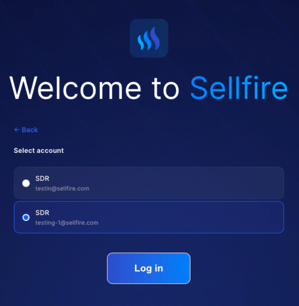
If you have multiple Sellfire users linked to your Google account(s), you'll be prompted to select the user that you'd like to access.
Switching between Sellfire users
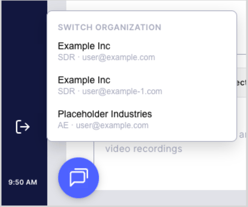
Once logged in, to switch between your Sellfire users, hover over (but don't click) the logout button  in the left navigation pane. A list of your linked users will populate. Click on the user that you would like to access.
Unlinking a Google account
If you would like to remove the Google account from a Sellfire user, navigate to Settings (profile pic at the top left of your page), and click Unlink on the right side of the Google account that you would like to unlink.
